
Why field inspectors stamp every photo
An inspection photo without a date and a location is half a photo. When you ship a punch-list, an audit, or an evidence-grade report, the reader needs to know when the shot was taken and where. EXIF metadata answers both questions, but only if the photo file survives the trip — and most chat apps, screenshots, and copy-paste flows strip EXIF along the way.
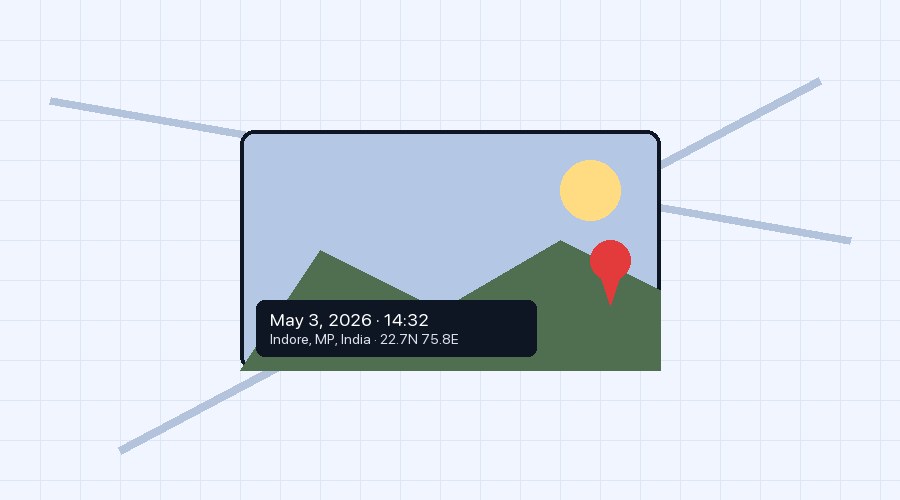
The fix is a visible stamp burned into the corner of the photo: a date line and a reverse-geocoded address, applied before the photo leaves your phone. It's evidence-grade, it survives every share method, and it answers the chain-of-custody question on sight.
EXIF vs visible stamp — when to use each
EXIF metadata (invisible)
Pros: doesn't change the photo's pixels; preserves the original; readable by any image viewer or photo software.
Cons: stripped by most chat apps (WhatsApp, Telegram, Slack uploads, iOS messages with reduced quality), invisible at-a-glance, and the receiver has to know how to inspect it.
Visible stamp (burned into pixels)
Pros: survives every share method; readable on a printed page; instantly trustworthy.
Cons: changes the photo's appearance; can't be removed after commit; requires care to position so it doesn't cover the subject.
For inspection-grade workflows the answer is usually both: keep the EXIF intact for software processing and add a visible stamp for human readers and printed reports.
What chain of custody actually requires
If your photos may end up as legal evidence, three properties matter:
- Authenticity — the photo wasn't edited beyond annotation
- Provenance — when and where it was taken
- Integrity — it hasn't been altered between capture and submission
EXIF + visible stamps cover provenance. Authenticity comes from the original device's RAW or unedited copy (always keep one). Integrity is established by your case-management software's audit log, or — for solo workflows — by burning a hash of the original into the report PDF.
The inspection photo workflow with Snap Markup
- Capture the photo. Use the camera built into Snap Markup or your phone's stock camera — both preserve EXIF.
- Open the photo in Snap Markup and tap the Stamp tool (calendar-with-clock icon).
- Snap Markup pulls the EXIF capture date automatically. If GPS coordinates are present in EXIF, the address is reverse-geocoded; if not, it falls back to the device's current location.
- Pick a corner — bottom-left is the convention for evidence photos. Adjust the typeface size if the photo is high-resolution.
- Layer on any other annotations you need — arrows, callouts, redaction blur for bystanders. Each layer stays editable until you tap Done.
- When the visit is complete, tap the floating + button on the Home grid → Generate PDF to bundle every stamped photo into one password-protected report. Read our guide on multi-photo PDF generation for the details.
Pro tips from the field
- Calibrated measurements. Pair the stamp with the Measurement tool to mark distances on the same photo. Inspectors love being able to point to a crack length without a separate ruler photo.
- Bystander privacy. Use AI Face Blur before the stamp goes on. Stamps go in corners; the blur covers the middle of the frame. Read our AI face blur guide for the workflow.
- Photo info popover. On the Home grid, tap the ⓘ on any thumbnail to see the original EXIF — useful for verifying that the date you'll stamp is actually the capture date, not today.
- Custom address format. If your jurisdiction prefers Lat/Lon over street address, you can switch in the stamp's options before applying.
Why Snap Markup beats stamp-only camera apps
The classic "timestamp camera" apps stamp the date but stop there. They have no annotation tools, no AI face blur, no measurement, and no PDF generator. You end up with stamped photos that you still have to mark up in a second app — round-trip friction that defeats the speed advantage.
Snap Markup ships all 21 tools in one editor: Stamp, Measurement, AI Face Blur, Speech Bubbles, multi-photo PDF, EXIF info popover, and 78-language localization. The whole inspection-photo workflow lives in a single app.
If you're doing site visits, audits, or compliance work daily, download Snap Markup from the App Store or Google Play. The free Android version is fully featured.